How to Reset a Sim in The Sims 4
From time to time your sims may glitch and you’ll need to know how to reset a sim in The Sims 4.
Thankfully, this requires a simple cheat code or a shift click so it’s so easy to do!
How to Reset Sims
There are two ways you can reset a sim, but both require you to first enable cheat codes. To do this you’ll open the cheat box in one of three ways:
- PC: Ctrl + Shift + C
- Mac: Command + Shift + C
- Console: All Four Triggers
Then you’ll type in testingcheats true and hit enter and the game will let you know that cheats are enabled.
Reset Sims with Shift Click
The easiest way to reset a sim is to use the shift click cheat menu. You’ll enable cheats then hold down shift and click on your sim and find resetobject (debug) and click on that.
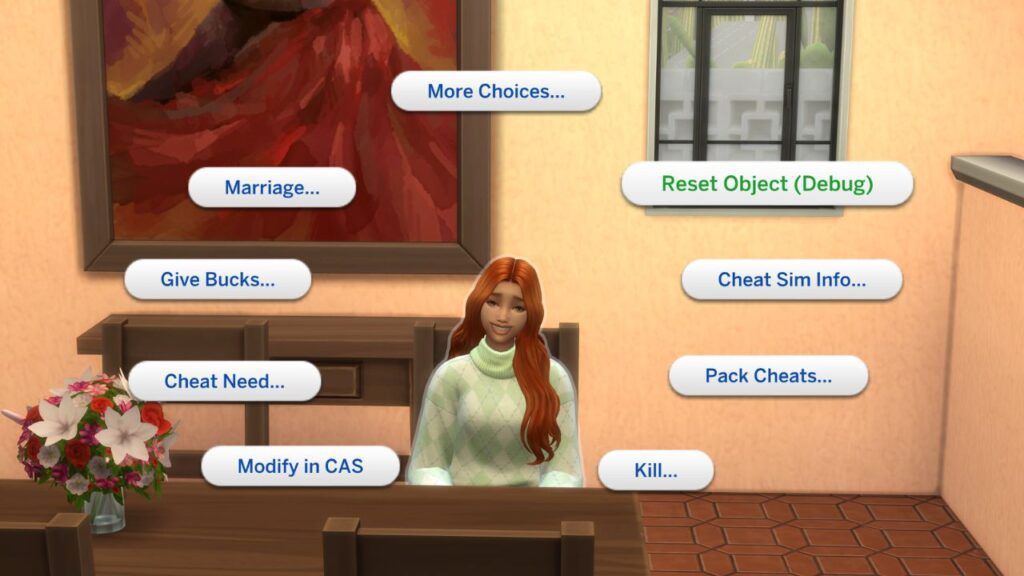
If your sim is sitting or laying they will jump up and be standing next to wherever they were lounging. Any tasks in the sim’s queue will be taken away and they should work again!
To shift click on a console you can use the following buttons while hovering over the sim:
- Playstation: Hold O and press X
- Xbox: Hold B and press A
Reset Sims with Text Cheats
The old school way of resetting sims is with the text cheats. To do this you’ll need to open the cheat box and type in resetsim {first name} {last name} and hit enter.
So, if your sim’s name is Bella Goth the cheat code you’ll use is resetsim Bella Goth to reset them.
However, it is important to note that this won’t work for sims who have three names. An example of a sim where this won’t work is J Huntington III, so for those sims you’ll need to use the shift click cheats.