How to Disable Packs in The Sims 4
Sometimes you may want to build with specific packs or just not want seasons in your game and you can use this simple way to disable packs in The Sims 4.
This allows you to pick specific packs that you want to play with, and leaving the rest!
How to Disable Packs in The Sims 4
To do this you need to put a specific string of text into the right section of the EA APP. You’ll open the EA app and go to The Sims 4 page.
You’ll see a section where you can see the game cover and the play button, beside play is manage. You’ll click on that and then choose view properties.
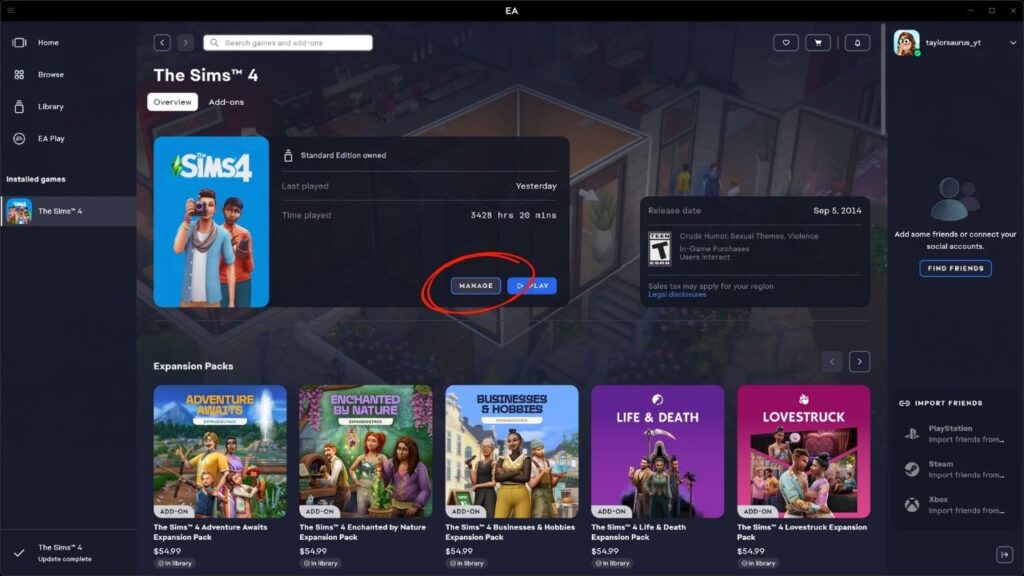
A menu opens where you see a section called advanced launch options and this section is where you’ll put the specific packs you want to disable.
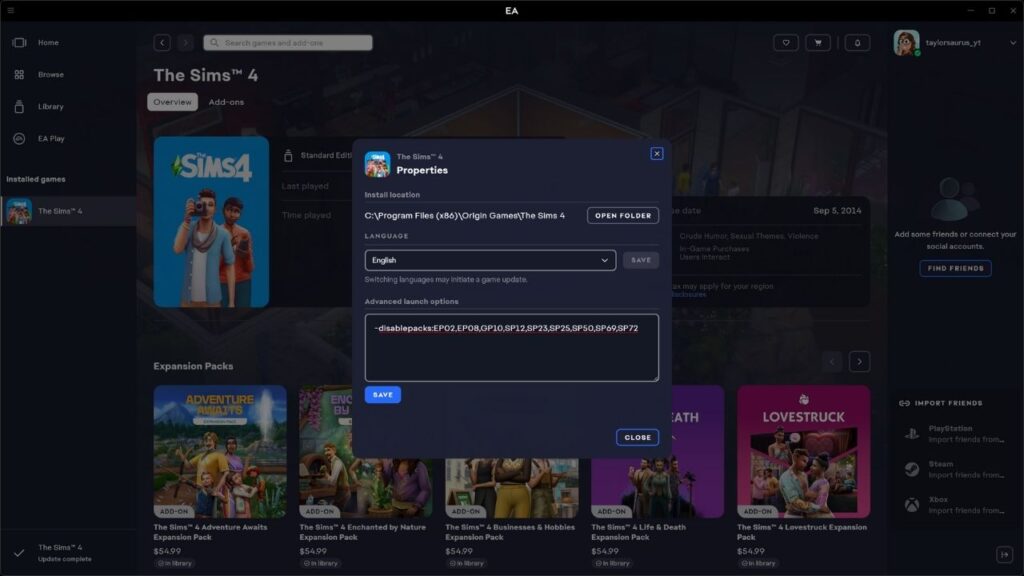
There are two ways you can get the information to put into this, the easiest way is to use James Turner’s pack disabler but the information to do it manually is found below as well!
Disabling Packs with James Turner’s Pack Disabler
The easiest way to disable packs is to use James Turner’s pack disabler. This website lets you click on pack icons to disable them and gives you the exact items you’ll copy into the EA app.
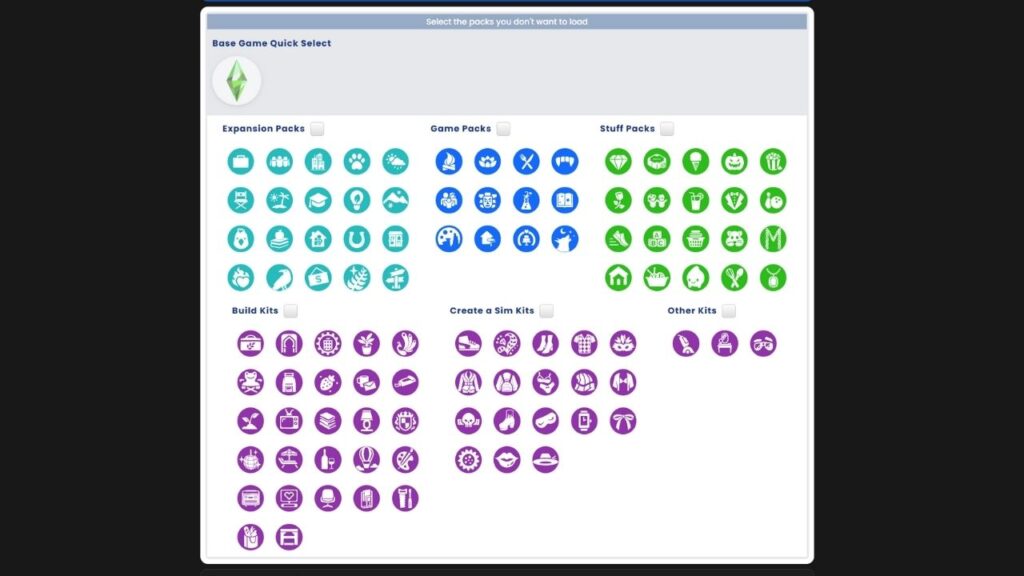
You’ll see a bunch of icons for each pack in the game on this website, you just click the individual icons to do specific packs or you can check thee different boxes to disable categories of packs.
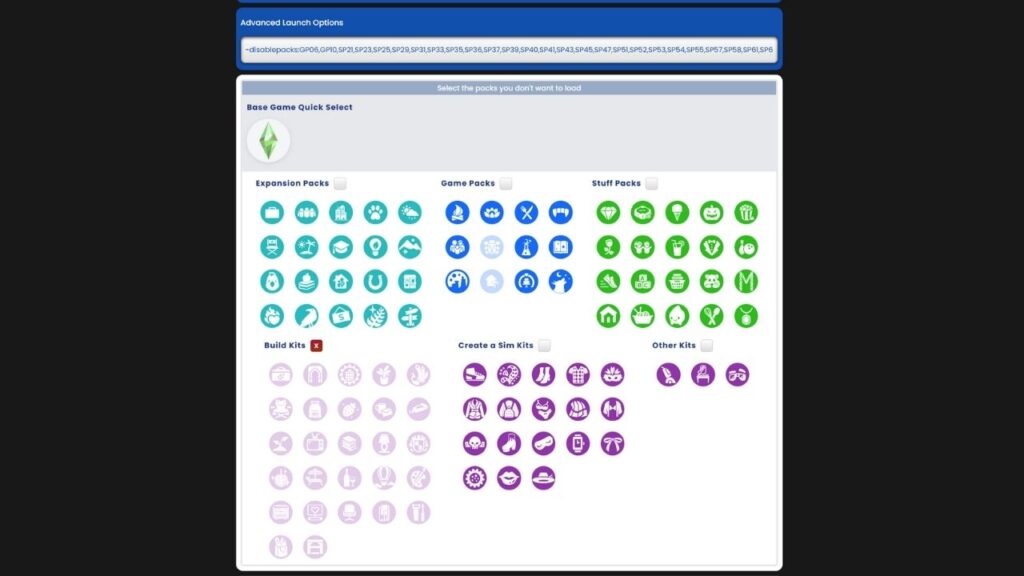
All the packs you’ve chosen to disable will appear in the advanced launch options section above the icons section and you can copy and paste that into the EA app section that we discussed before.
Disabling Packs Manually
If you don’t want to use James Turner’s website and want to do it yourself, no worries. You’ll be able to do that you just need to know the pack abbreviations for the specific packs you’re trying to disable. You’ll need to first type -disablepacks: into the EA app followed by the specific packs you’d like to disable with commas between.
For example, if you have a desire to disable get to work, get together and outdoor retreat you would put -disablepacks:EP01,EP02,GP01 into the EA APP. Below you’ll find the specific pack abbreviations that you’d use to do this separated by type of pack to make it easy to find them!
Expansion Packs
| Pack Name | Abbreviation |
|---|---|
| Get to Work | EP01 |
| Get Together | EP02 |
| City Living | EP03 |
| Cats & Dogs | EP04 |
| Seasons | EP05 |
| Get Famous | EP06 |
| Island Living | EP07 |
| Discover University | EP08 |
| Eco Lifestyle | EP09 |
| Snowy Escape | EP10 |
| Cottage Living | EP11 |
| High School Years | EP12 |
| Growing Together | EP13 |
| Horse Ranch | EP14 |
| For Rent | EP15 |
| Lovestruck | EP16 |
| Life & Death | EP17 |
| Businesses & Hobbies | EP18 |
| Enchanted by Nature | EP19 |
| Adventure Awaits | EP20 |
Game Packs
| Pack Name | Abbreviation |
|---|---|
| Outdoor Retreat | EP01 |
| Spa Day | EP02 |
| Dine Out | EP03 |
| Vampires | EP04 |
| Parenthood | EP05 |
| Jungle Adventure | EP06 |
| Strangerville | EP07 |
| Realm of Magic | EP08 |
| Journey to Batuu | EP09 |
| Dream Home Decorator | EP10 |
| My Wedding Stories | EP11 |
| Werewolves | EP12 |
Stuff Packs
Note: Kits also use the abbreviation SP to after Paranormal stuff kits were introduced and the numbers shoot up with Crystal Creations being SP49 and Home Chef Hustle being SP46 out of nowhere!
| Stuff Pack Name | Abbreviation |
|---|---|
| Luxury Party | SP01 |
| Perfect Patio | SP02 |
| Cool Kitchen | SP03 |
| Spooky | SP04 |
| Movie Hangout | SP05 |
| Romantic Garden | SP06 |
| Kid’s Room | SP07 |
| Backyard | SP08 |
| Vintage Glamour | SP09 |
| Bowling Night | SP10 |
| Fitness | SP11 |
| Toddler | SP12 |
| Laundry Day | SP13 |
| My First Pet | SP14 |
| Moschino | SP15 |
| Tiny Living | SP16 |
| Nifty Knitting | SP17 |
| Paranormal | SP18 |
| Home Chef Hustle | SP46 |
| Crystal Creations | SP49 |
Kits
| Kit Name | Abbreviation |
|---|---|
| Throwback Fit | SP20 |
| Country Kitchen | SP21 |
| Bust the Dust | SP22 |
| Courtyard Oasis | SP23 |
| Fashion Street | SP24 |
| Industrial Loft | SP25 |
| Incheon Arrivals | SP26 |
| Modern Menswear | SP28 |
| Blooming Rooms | SP29 |
| Carnaval Streetwear | SP30 |
| Decor to the Max | SP31 |
| Moonlight Chic | SP32 |
| Little Campers | SP33 |
| First Fits | SP34 |
| Desert Luxe | SP35 |
| Pastel Pop | SP36 |
| Everyday Clutter | SP37 |
| Simtimates Collection | SP38 |
| Bathroom Clutter | SP39 |
| Greenhouse Haven | SP40 |
| Basement Treasures | SP41 |
| Grunge Revival | SP42 |
| Book Nook | SP43 |
| Modern Luxe | SP45 |
| Goth Galore | SP48 |
| Castle Estate | SP47 |
| Urban Homage | SP50 |
| Party Essentials | SP51 |
| Riviera Retreat | SP52 |
| Cozy Bistro | SP53 |
| Storybook Nursery | SP55 |
| Artist Studio | SP54 |
| Sweet Slumber Party | SP56 |
| Cozy Kitsch | SP57 |
| Secret Sanctuary | SP59 |
| Comfy Gamer | SP58 |
| Cassanova Cave | SP60 |
| Refined Living Room | SP61 |
| Business Chic | SP62 |
| Sweet Allure | SP64 |
| Sleek Bathroom | SP63 |
| Restoration Workshop | SP65 |
| Kitchen Clutter | SP67 |
| Golden Years | SP66 |
| Grunge Mudroom | SP71 |
| Essential Glam | SP72 |
| Autumn Apparel | SP69 |
| Modern Retreat | SP73 |
| Garden to Table | SP74 |
| SpongeBob Kid’s Room | SP70 |
| Spongebob’s House | SP68 |
| Prairie Dreams | SP81 |