How to Disable Hover Effects in The Sims 4
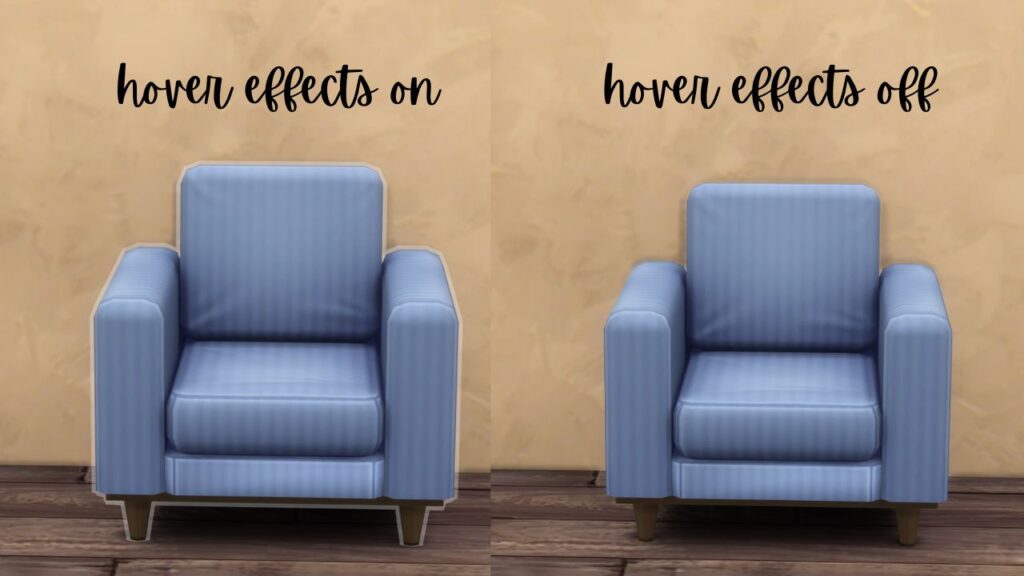
When you’re playing The Sims 4 you’ll see a white outline on items you hover over but you can actually disable hover effects!
This lets you remove the hover outline that bothers so many players and it’s actually so easy.
How to Disable Hover Effects
The first thing you need to do is enable cheat codes with the cheat testingcheats true and you’ll put that into the cheat box. You can open the cheat box in the following ways:
- PC: Ctrl + Shift + C
- Mac: Command + Shift + C
- Console: All Four Triggers
When you hit enter the game will tell you that cheats are enabled and then you can use one of the following codes to either turn off the hover effects of turn them back on. It’s so easy!
| Cheat Effects | Cheat Code |
|---|---|
| Turns off Hover Effects | hovereffects off |
| Turns on Hover Effects | hovereffects on |